December 9, 2025
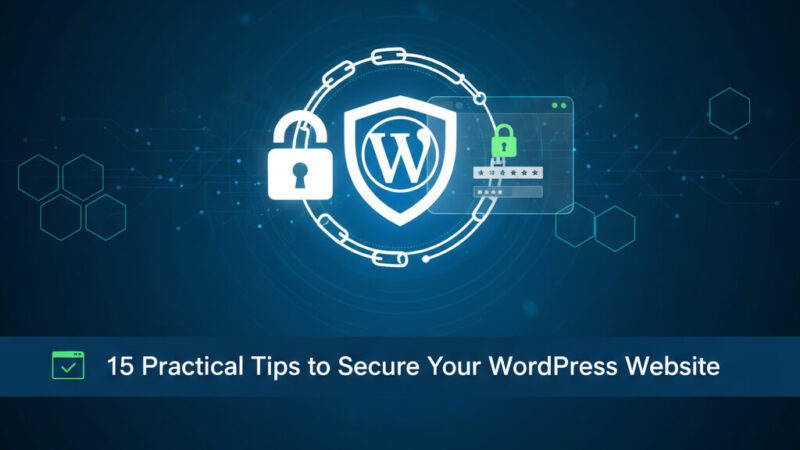
15 Practical Tips to Secure Your WordPress Website
WordPress powers over 40% of the internet which makes it the main target for hackers and automated bots. It can lead to disaster if you adopt “set it and forget it” approach. Security is not a one-time task; it requires ongoing attention and effort.
In this guide, I will provide some essential tips to help you secure your WordPress site from attackers and bad bots.
1. Keep Everything Up to Date
This is the most critical rule. Outdated software is the primary reason websites get hacked.
- WordPress Core: Keep the WordPress version up to date. Enable automatic updates for minor releases in the settings (Settings > General) or (Dashboard > Updates). For major releases, test the updates on a staging site first before updating on production.
- Plugins & Themes: Update themes & plugins promptly as their developers release security fixes as soon as they aware of a vulnerability. Remove any plugins or themes that are no longer maintained actively. Delete unused themes & plugins (Not just deactivate)
- PHP Version: Ensure your hosting environment uses a supported, latest PHP version (e.g., PHP 8.0 or later). Older versions, like PHP 7.4 and below, have known security vulnerabilities.
2. Change Default User ID=1
When you install WordPress, The first (default) user has the ID 1. Attackers & Hackers know this and will target it. Here is how you can change the user ID of first wp user:
Method 1: Run below SQL queries after installing WordPress to change the default user ID 1 across tables.
UPDATE wp_users SET ID = 112 WHERE ID = 1;
UPDATE wp_usermeta SET user_id = 112 WHERE user_id = 1;
UPDATE wp_posts SET post_author = 112 WHERE post_author = 1;
UPDATE wp_comments SET user_id = 112 WHERE user_id = 1;
UPDATE wp_links SET link_owner = 112 WHERE link_owner = 1;
Method 2: Create a new Admin User and reassign content.
- Login to WordPress Admin and Go to Users > Add New.
- Create a new user with an Administrator role.
- Log out and log in again with the new admin account you just created.
- Go to Users and hover on the old admin user and click delete.
- At the bottom, select Attribute all content to your new admin user and click Confirm Deletion.
- The old user (ID=1) is deleted, and all their posts/pages are now owned by the new user, which has a different, random ID.
3. Change Default Login URL
The default /wp-admin & /wp-login.php URLs are known to hackers and frequently targeted by brute-force attacks. Changing these URLs can significantly disrupt the efforts of automated scripts attempting to gain unauthorized access.
One of the most effective way to change your default login URL is to use a plugin like WPS Hide Login. This lightweight plugin requires only a single setting adjustment to customize your login URL, enhancing your site’s security without much hassle.
The code method of changing login url is complex as it requires redirecting the login url and creating a custom page template to handle the login. Using the above plugin is highly recommended for most users.
4. Disable XML-RPC (or Rate-Limit if Needed)
XML-RPC is a legacy feature that can be exploited for DDoS attacks and brute-force attempts, making it crucial to manage its use carefully.
Plugin Method: You can easily disable XML-RPC using a security plugin such as Wordfence or the Disable XML-RPC plugin, allowing you to turn it off with just one click.
Code Method: Add the below snippet in yout theme’s functions.php or in your custom plugin:
// Disable XML-RPC completely
add_filter('xmlrpc_enabled', '__return_false');

// Remove xmlrpc from headers
add_filter('wp_headers', function($headers) {
    unset($headers['X-Pingback'], $headers['pingback']);
    return $headers;
});
If you find that you need XML-RPC for certain functionalities, such as using the Jetpack plugin or the WordPress mobile app, consider implementing rate-limiting. This can be achieved through your Web Application Firewall (WAF), providing a more secure way to utilize XML-RPC without exposing your site to potential threats.
5. Enable Two-Factor Authentication (2FA)
Two-Factor Authentication (2FA) provides an additional layer of security, requiring not only your password but also a verification code sent to your phone. This significantly reduces the risk of unauthorized access.
To enable 2FA, you can use plugins like Wordfence, Google Authenticator, or WP 2FA. These tools will guide you through the setup process, allowing you to use an authentication app like Google Authenticator or Authy.
It’s important to enforce 2FA for all Administrator and Editor users to ensure maximum security across your site. This way, even if a password is compromised, the additional layer of verification helps to protect your site’s integrity.
6. Limit Login Attempts
By default, WordPress allows unlimited login attempts, which opens the door to brute-force attacks. To enhance security, it’s crucial to limit login attempts, locking out IP addresses after a few failed tries.
Consider using plugins like Wordfence or Limit Login Attempts Reloaded. Set a limit, such as 3-5 attempts, to safeguard your login area from unauthorized access.
7. Enable CAPTCHA
Stop bots from abusing your login, registration, contact and comment forms.
reCaptcha by BestWebSoft (Recommended): A lightweight, privacy-friendly plugin that supports reCAPTCHA v2, Invisible reCAPTCHA, and Cloudflare Turnstile. It works with default WordPress forms and the most popular third-party plugins. Check out the plugin reCaptcha by BestWebSoft.
Cloudflare Turnstile (Alternative): An easy-to-implement CAPTCHA that silently verifies human traffic without asking users to solve riddles, improving security and User Experience. Available in both free and enterprise plans. Check out on Cloudflare Turnstile Page.
8. Use a Secure DNS-level WAF (Cloudflare)
A Web Application Firewall (WAF) blocks malicious traffic before it reaches to your server. Cloudflare is the industry leader in this area, and their free plan includes a powerful WAF.
To get started, sign up for Cloudflare and update your domain’s nameservers to point to Cloudflare. Once you are in the Cloudflare dashboard, enable the WAF. If you are experiencing a severe DDoS attack, then you can also activate Under Attack Mode.
9. Keep wp-admin Behind a Firewall / Allowlist IPs
You should allow access to your WordPress admin area (/wp-admin and /wp-login.php) from specific & trusted IP addresses only.
How to do it via Apache .htaccess:
Add this code to the .htaccess file in your website’s root directory.
# Block access to wp-admin and wp-login.php for everyone except your IP
<Files "wp-login.php">
  Order Deny,Allow
  Deny from all
  Allow from 123.456.789.123 # Replace with your static IP
  Allow from 123.456.789.124 # Replace with your static IP
</Files>

<Files "admin-ajax.php">
  Order Allow,Deny
  Allow from all

</Files>
How to do it if you are using nGinx:
Add this inside the server block.
# Restrict wp-login.php to your IP
location = /wp-login.php {
    allow 123.456.789.123;      # your static IP
    deny all;
    include fastcgi_params;
    fastcgi_pass php-fpm;       # or your upstream like unix:/run/php/php8.2-fpm.sock
    fastcgi_param SCRIPT_FILENAME $document_root$fastcgi_script_name;
}

# Restrict wp-admin directory to your IP
location /wp-admin/ {
    allow 123.456.789.123;   # your static IP
    deny all;
}

#Allow Ajax Calls
location ~* /wp-admin/admin-ajax\.php$ {
    allow all;
    include fastcgi_params;
    fastcgi_pass php-fpm;       # adjust to your PHP handler
    fastcgi_param SCRIPT_FILENAME $document_root$fastcgi_script_name;
}
Note: It will work for static IP addresses only. You can find your IP address by Googling “what is my ip”.
10. Disable PHP in Uploads Directory
If a hacker uploads a malicious PHP file pretend to be as an image, this method will prevent it from being executed.
If using Apache, Create a .htaccess file inside your /wp-content/uploads/ directory and add the following code:
<Files *.php>
deny from all
</Files>
If using nGinx, Add the following snippet inside your server block:
# Disable PHP execution in /wp-content/uploads
location ~* /wp-content/uploads/.*\.php$ {
    deny all;
    return 403;
}
11. Secure File Permissions
Incorrect file permissions are the common security gap.
Folders/Directories: 755 (or 750)
Files: 644 (or 640)
wp-config.php: 600 or 644 (It should never be 666 or 777)
You can check and change these permissions using your hosting File Manager or FTP.
12. Protect wp-config.php
In WordPress, wp-config.php file contains database information and security keys. You can use the below code to block direct access to wp-config.php.
Apache: Add to your main .htaccess file
<files wp-config.php>
order allow,deny
deny from all
</files>
nGinx: Add this inside your server block:
# Block direct access to wp-config.php
location ~* wp-config\.php$ {
    deny all;
}
13. Remove Unused Plugins & Themes
Inactive themes and plugins are potential security risk. If you are not using them, delete them completely instead of just deactivating.
Security headers instruct web browsers on how to handle requests, helping to prevent various types of attacks.
To implement these security measures on Apache, add the following lines to your .htaccess file.
# Security Headers
<IfModule mod_headers.c>
    Header always set Strict-Transport-Security "max-age=31536000; includeSubDomains"
    Header always set X-Content-Type-Options "nosniff"
    Header always set X-Frame-Options "SAMEORIGIN"
    Header always set X-XSS-Protection "1; mode=block"
    Header always set Referrer-Policy "strict-origin-when-cross-origin"
</IfModule>
For nGinx, Add this inside your server block (or in a reusable security-headers.conf file included in all sites):
# Security Headers
add_header Strict-Transport-Security "max-age=31536000; includeSubDomains" always;
add_header X-Content-Type-Options "nosniff" always;
add_header X-Frame-Options "SAMEORIGIN" always;
add_header X-XSS-Protection "1; mode=block" always;
add_header Referrer-Policy "strict-origin-when-cross-origin" always;
15. Prevent Author Enumeration
Attackers may use query string in URLs like /?author=1 to find usernames. To prevent this, add the following code to your theme’s functions.php file:
// Block author enumeration
if (!is_admin() && isset($_GET['author'])) {
    wp_redirect(home_url(), 301);
    exit;
}
Pro / Advanced Tips (Highly Recommended)
✅ Off-Site Backups
Always store backups on external storage (Google Drive, Dropbox, S3, etc.). Never on the same server. A compromised server and local backup means both are gone. Also try to perform backup restore occasionally to ensure your backups are actually usable.
✅ Monthly Security Audit
Once a month, spend 10-15 minutes to review below:
- Unknown or suspicious user accounts
- Security plugin / firewall logs
- Whether backups are still running successfully
- Cloudflare / WAF analytics for blocked threats
Conclusion:
Securing a WordPress website is not a one-time task; it’s an ongoing process. Hackers continuously seek out the most easy targets, such as outdated sites, easy login credentials, and misconfigured servers. By following the practical steps outlined in this guide, you can significantly reduce your vulnerabilities and make your site much harder to exploit.
Most attacks today are automated, so even small oversights can lead to serious consequences. However, the opposite is also true: a few proactive security habits can protect you from 95% of common threats.
Start with the essential security measures and gradually implement more advanced techniques. Over time, these practices will become part of your regular maintenance routine, providing you with peace of mind and long-term stability for your website.
Prevention is always easier and cheaper than recovery.
Need Help Securing Your WordPress Site?
If you are not sure about how to implement these security measures or prefer a professionally secured setup, We can assist you in applying these protections from start to finish. This includes firewall rules, server-level security, backups, DNS/WAF setup, and performance optimization.
Contact us for a hands-on WordPress security hardening service or consultation.